Alarms
Some gadgets have and alarms feature. If your gadget supports alarms and Gadgetbridge has support of syncing alarms to your gadget, you can configure alarms in Gadgetbridge. Tap on the Alarm icon on the home screen to manage alarms.
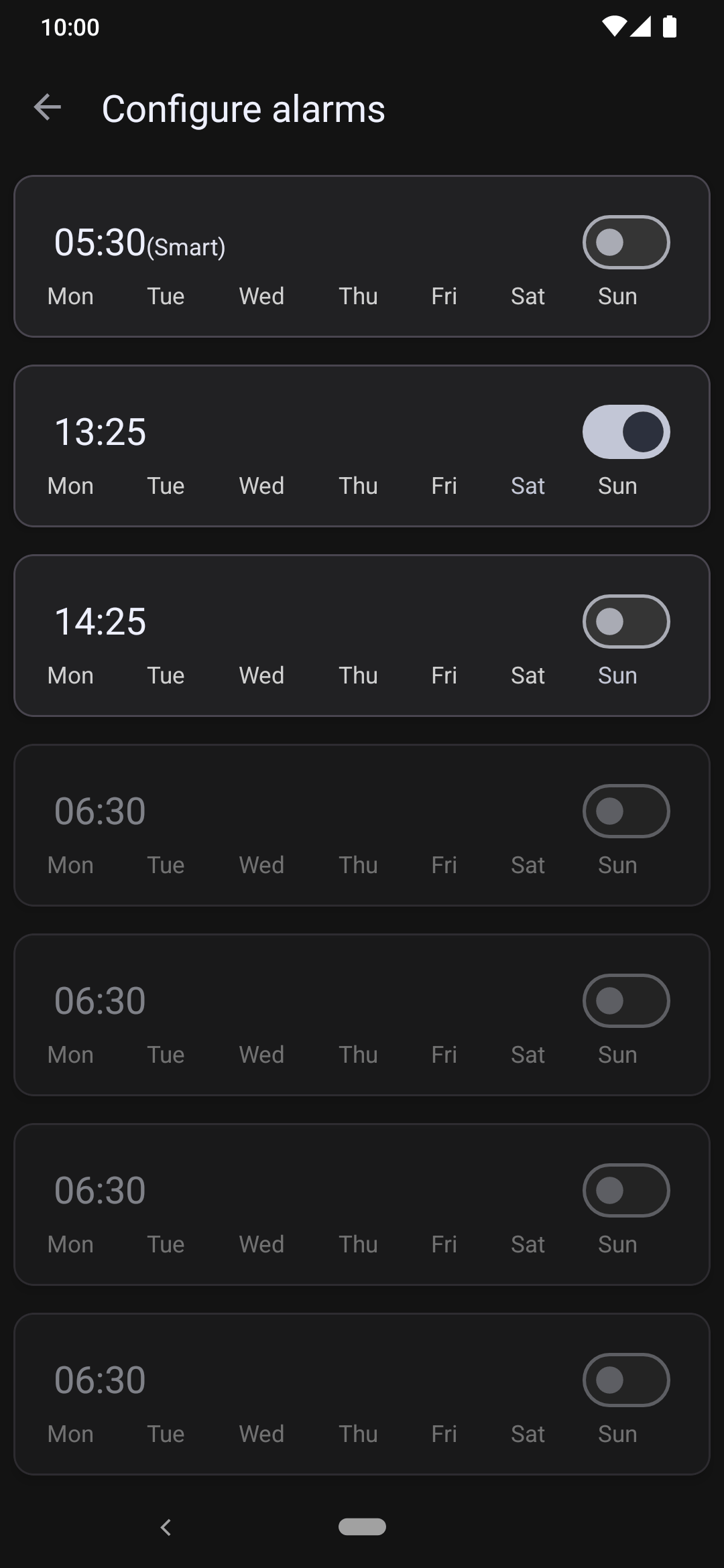
Setting up
Tap on an alarm to set its time. Then tap on the Toggle next to it to enable or disable the alarm.
Any added alarms will also appear on the gadget, whether the toggle is currently turned on or off. This allows you to control the disabled alarms on your gadget too.
However, if your gadget has a small screen, having all alarms on the gadget can be a problem because the screen size may not be good for scrolling through so many alarms, so you can delete an alarm by clicking the Trash icon to prevent an alarm to be synced to the gadget.
To see a list of all alarm slots, tap on More icon and enable "Show unused alarms". Grayed out alarms mean it won't synced to the gadget, but this can be reverted by enabling the alarm back.
Alarms configured in Gadgetbridge are sent to the gadget during Bluetooth connect and when you exit from the alarms screen.