Contacts
Some gadgets support storing contacts inside its storage, allowing you to access your contacts on the gadget for placing calls easily.
These contacts are separate from the contacts saved on your phone, so your phone's own contact list won't be affected when you add, change or delete a contact from the gadget with Gadgetbridge.
Setting up
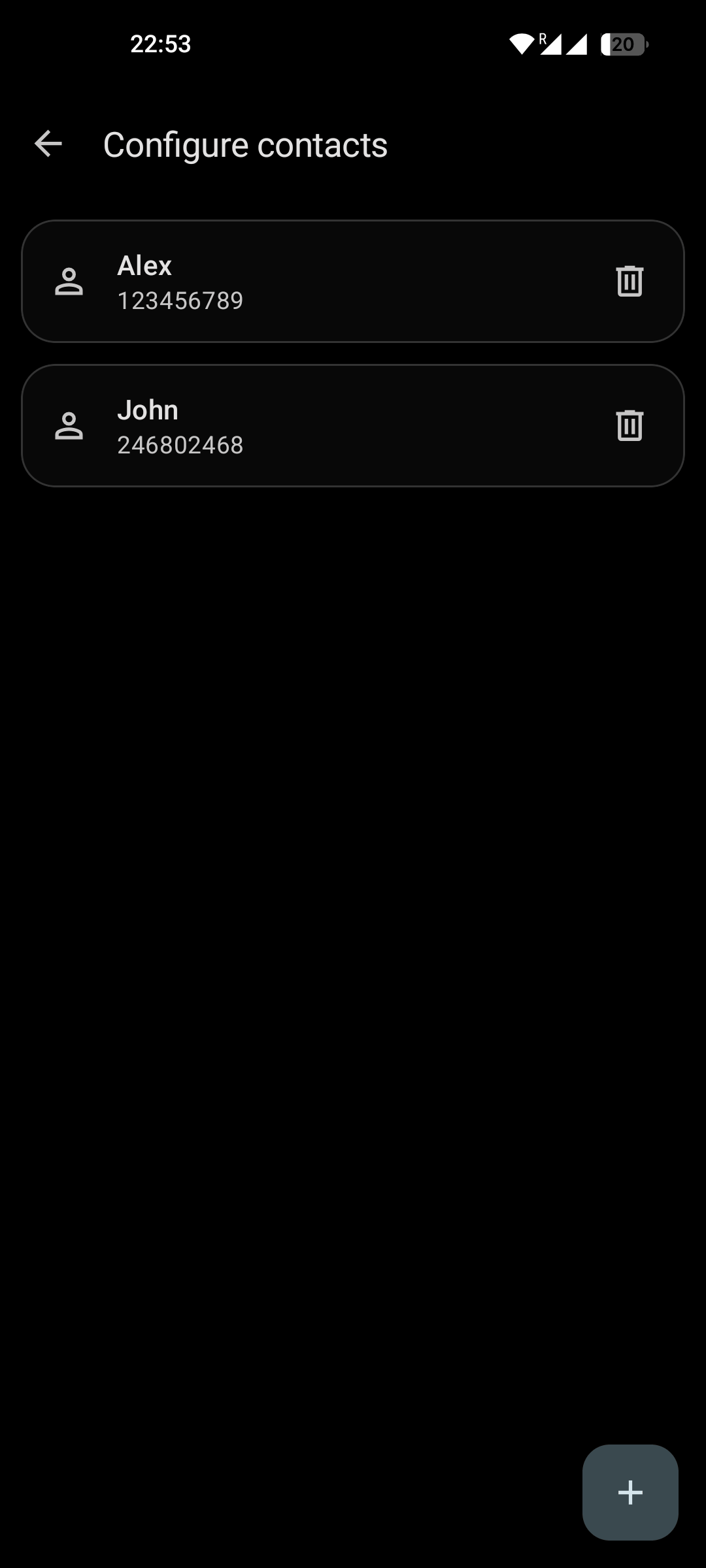
Under "Device specific settings → Contacts", you can manage saved contacts on gadget. This menu will be only shown if your gadget supports it.
Pressing Trash button next to the contact will delete it, and pressing on a listed contact will allow you to change its name and phone number.
To add a new contact, press Add button to choose between "Add manually" or "Select from contacts".
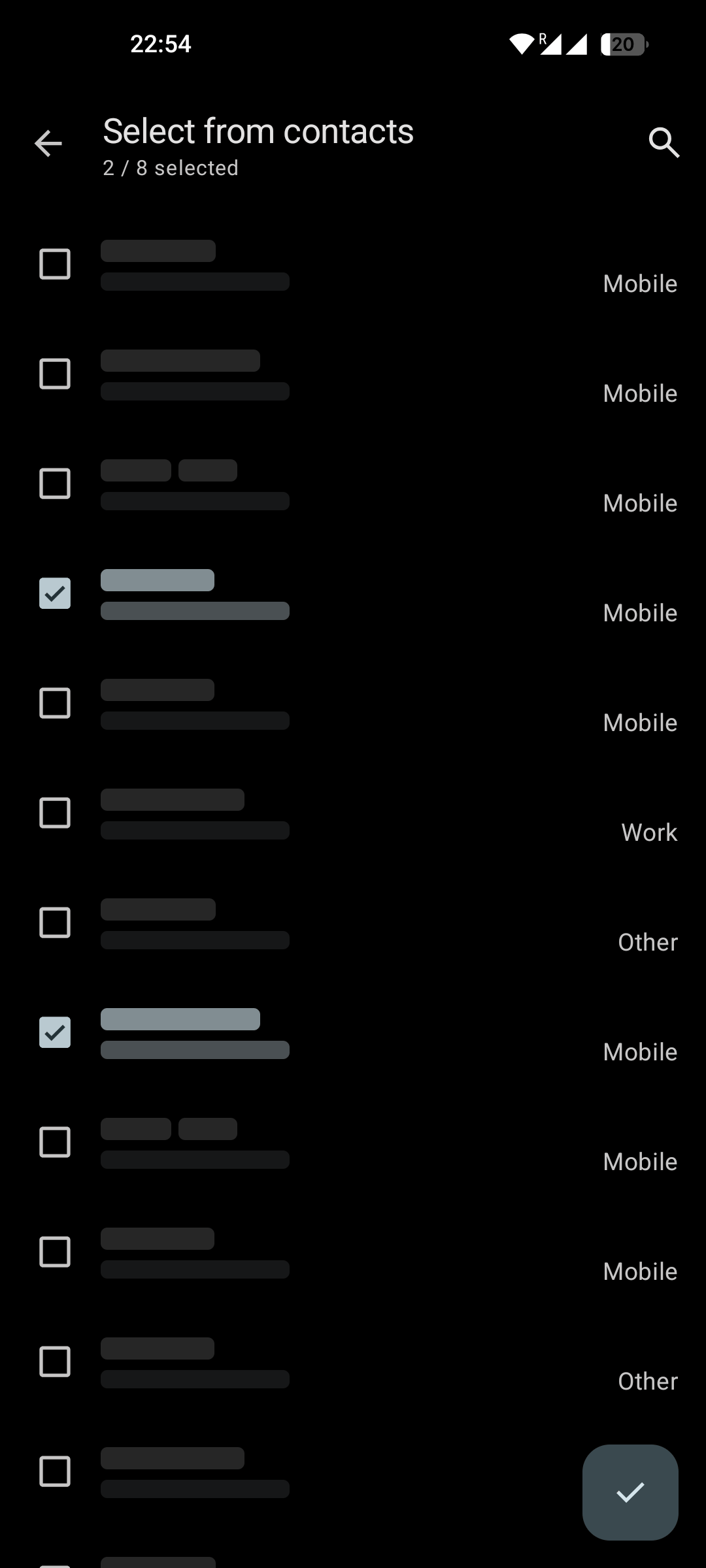
Selecting from your contacts will allow you to bulk-select contacts from your phone to import to the gadget.
Gadgets have limited capacity and can store only a few contacts. The remaining capacity (reduced by the number of contacts already saved) is shown at the top of the screen.
When done, press the Done icon to return to the saved contacts list, with the selected contacts added. You can still edit the name or phone number of an imported contact as if it had been added manually.
Gadgetbridge will prevent you from adding a new contact if you reach the contact limit.