Sports and GPS
Some gadgets can record "workouts" ("activities", "trainings"...). To create these recorded activities, you must start the recording on the gadget via its menu. These can then be synchronized with Gadgetbridge. If you do not synchronize these activities for a long time, the gadget might stop being able to record more data and will show a "Your data is full" message (or a similar one).
To view your workout history, make sure to Synchronize data first. Then press on Sports icon from home screen to access activity charts.
Sport activities
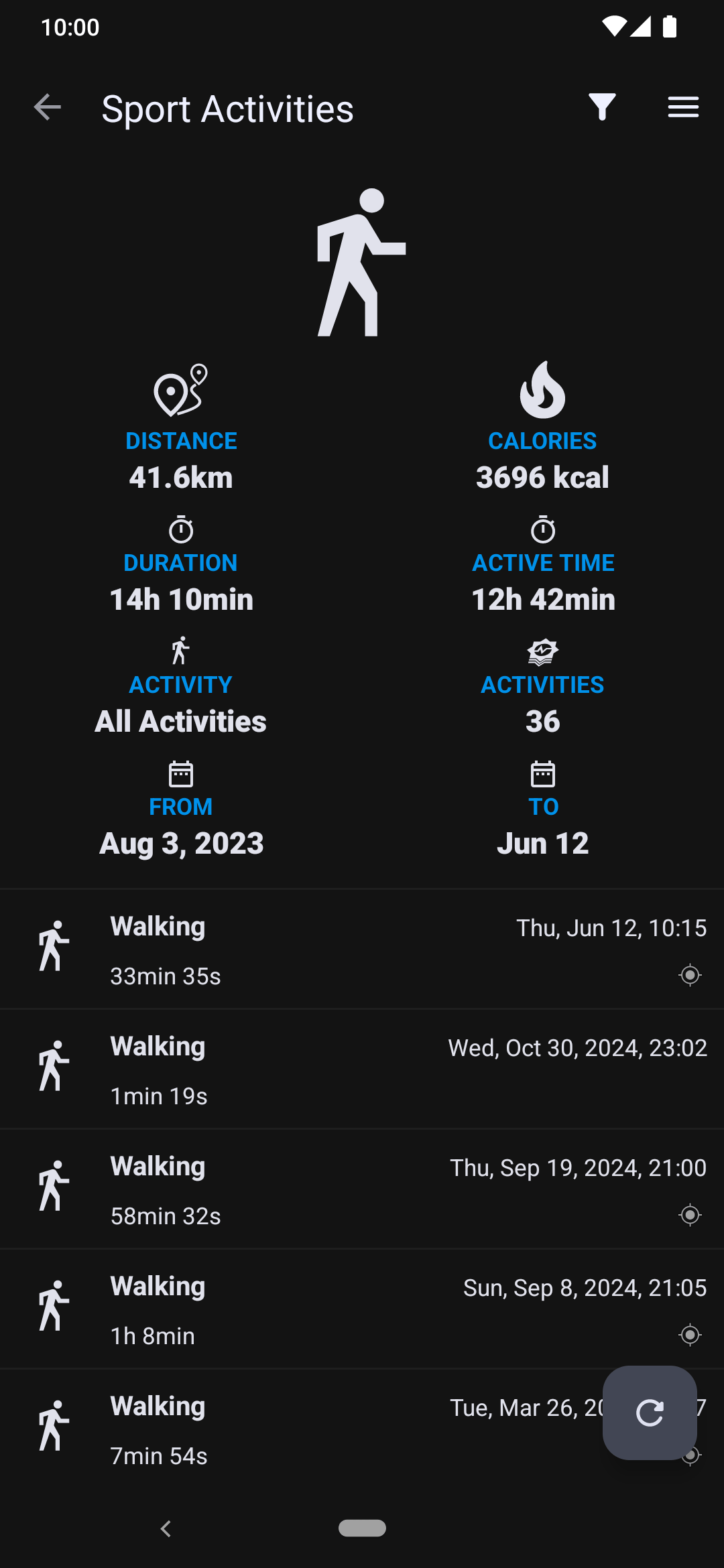
Here you can manage your activities. Activities that contain GPS data will be indicated with icon next to the activity duration.
Tapping on an Activity opens up a details screen. Long tap allows multi-selection, with "Add to filter", "Select all", "Export workouts" and "Delete" actions.
Exporting workouts
After selecting one or more activities, tap Export workouts and choose what to export:
- FIT files: one FIT file per activity, see FIT files.
- GPX tracks (workouts with GPS): one GPX file per activity that has a GPS track.
- Raw device files: the files as they were received from the gadget, when the gadget provides them.
Then choose to share them as Separate files or as One zip file. pull request #6865
Workouts needs to be manually synced
Sport activity syncing is always manual and it is not part of the automatic syncing. This allows you to sync your activities when you need it (rather then when the app decides), because it can take quite some time due to their size and some gadgets are not usable during the sync.
Press the Refresh button or swipe down to retrieve workouts from the gadget. Please note that only one workout will be fetched at a time, you have to sync again to get the next activity and so on.
Gadgetbridge remembers the time of last synced item so if the workout data is still in the gadget (some gadgets erase it after transfer), you can re-fetch the data anytime later by using top-right menu " → Reset fetch time", setting the time back (to date before this activity happened) and re-syncing.
Filtering
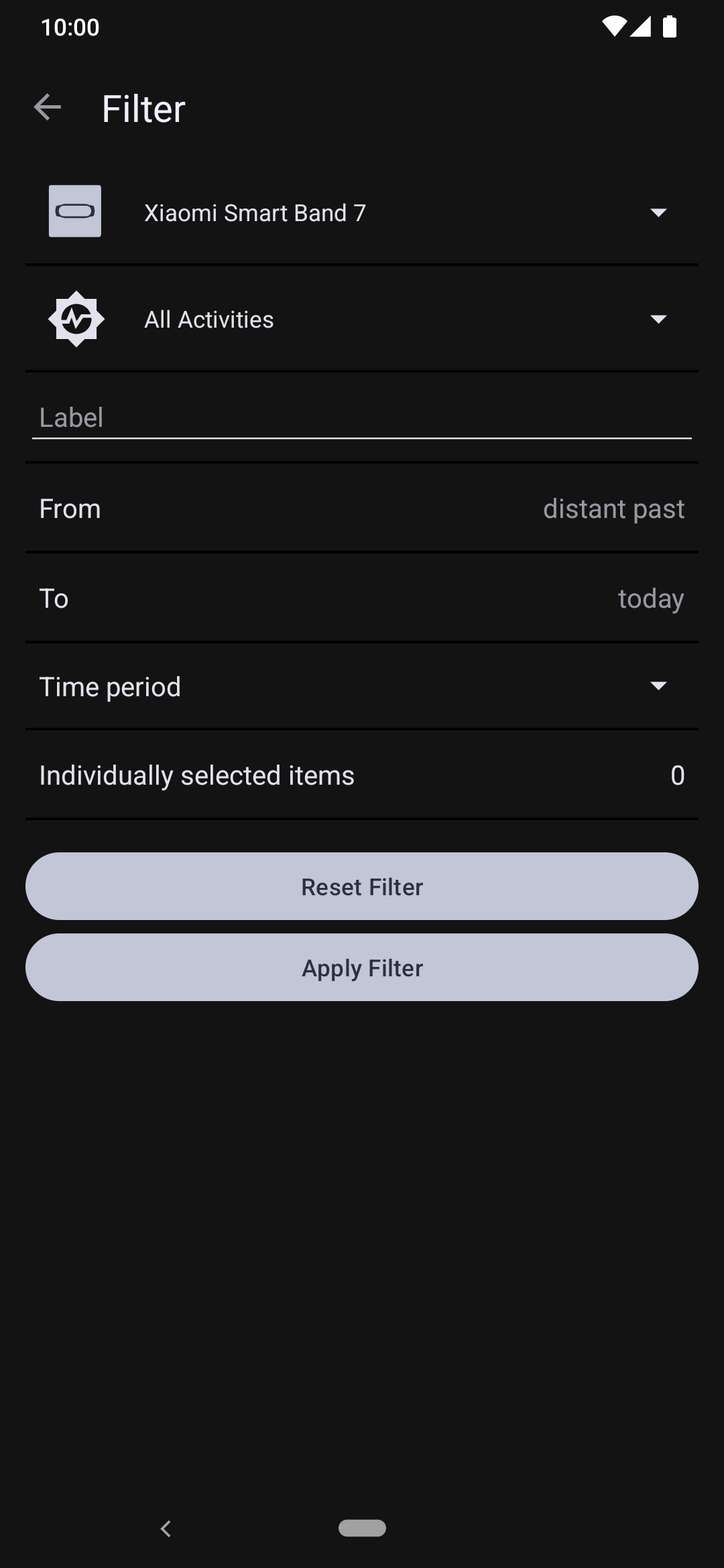
Tap the Filter icon to show only activities you would like to see.
Activity detail
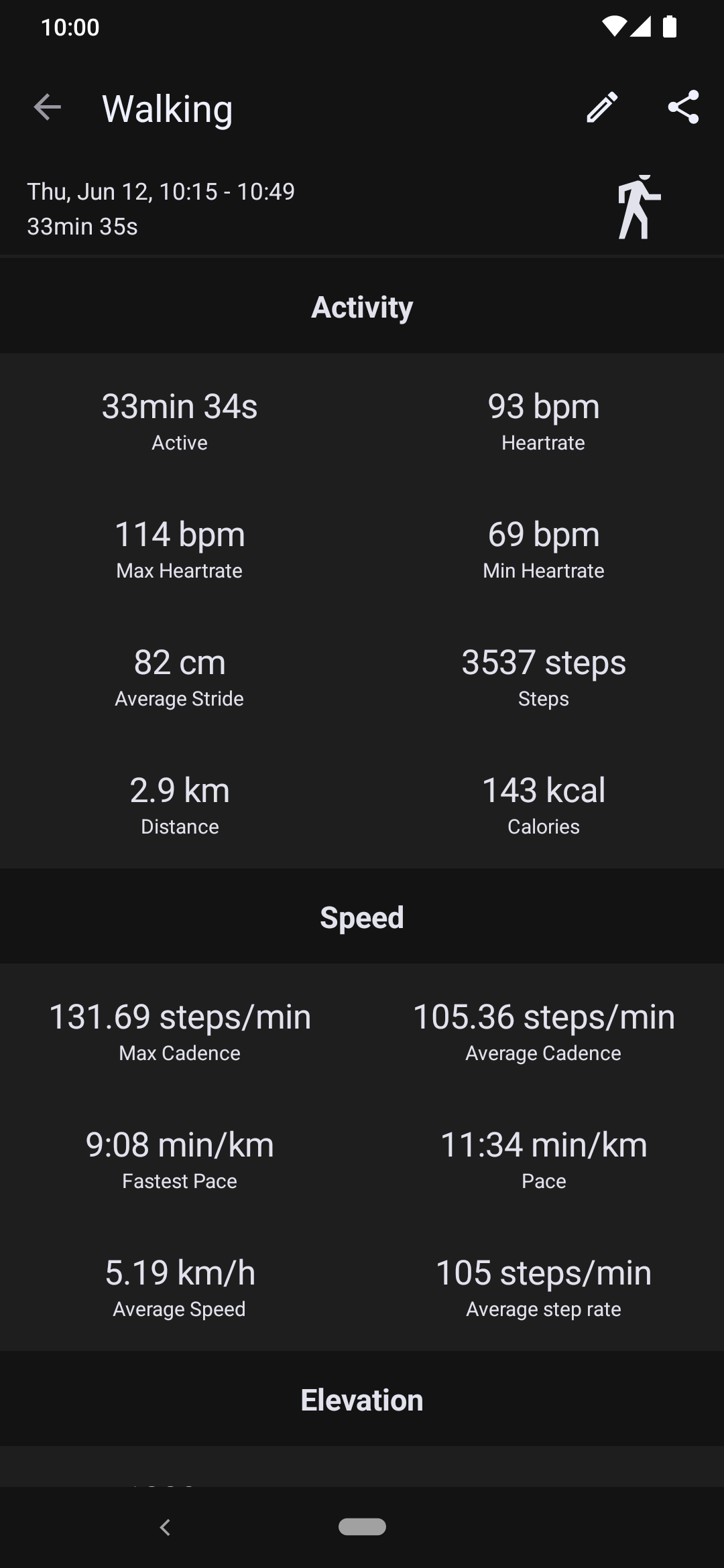
This shows details about the activity. If you long tap on the activity icon (in this case ), the values will switch from recalculated (for example min/km) to raw, as provided by the band (for example sec/m). This can be useful for troubleshooting.
When needed, you can click Edit on top-right to edit an activity's label, type, photo or GPX track.
The details are split into tabs: pull request #6751
- Overview: the summary of the activity, its GPS map and, for strength workouts, its sets.
- Laps: laps and intervals, shown only when the activity has them.
- Charts: charts of the recorded values (such as heart rate, speed, pace, cadence or elevation) and the heart rate zones.
- Details: the remaining values of the activity, grouped by metric.
Charts follow the distance and temperature units chosen in the settings, for example pace in min/mi and elevation in ft when imperial units are selected. pull request #6449
Heart rate zones
The heart rate chart shows the heart rate zones as colored bands behind the heart rate line, with the zone limits as dashed lines. A Time in zones table is shown under the chart. pull request #6930
Intervals
Not yet released
Support for this feature has been added to Gadgetbridge's codebase, but is not yet released. It is already available in the nightly releases.
For activities recorded with intervals (for example interval rowing), the charts show markers at the start of each interval, and the Laps tab lists each interval as Active or Rest with its duration, average heart rate and, for rowing, the stroke count. pull request #6355
Heart rate
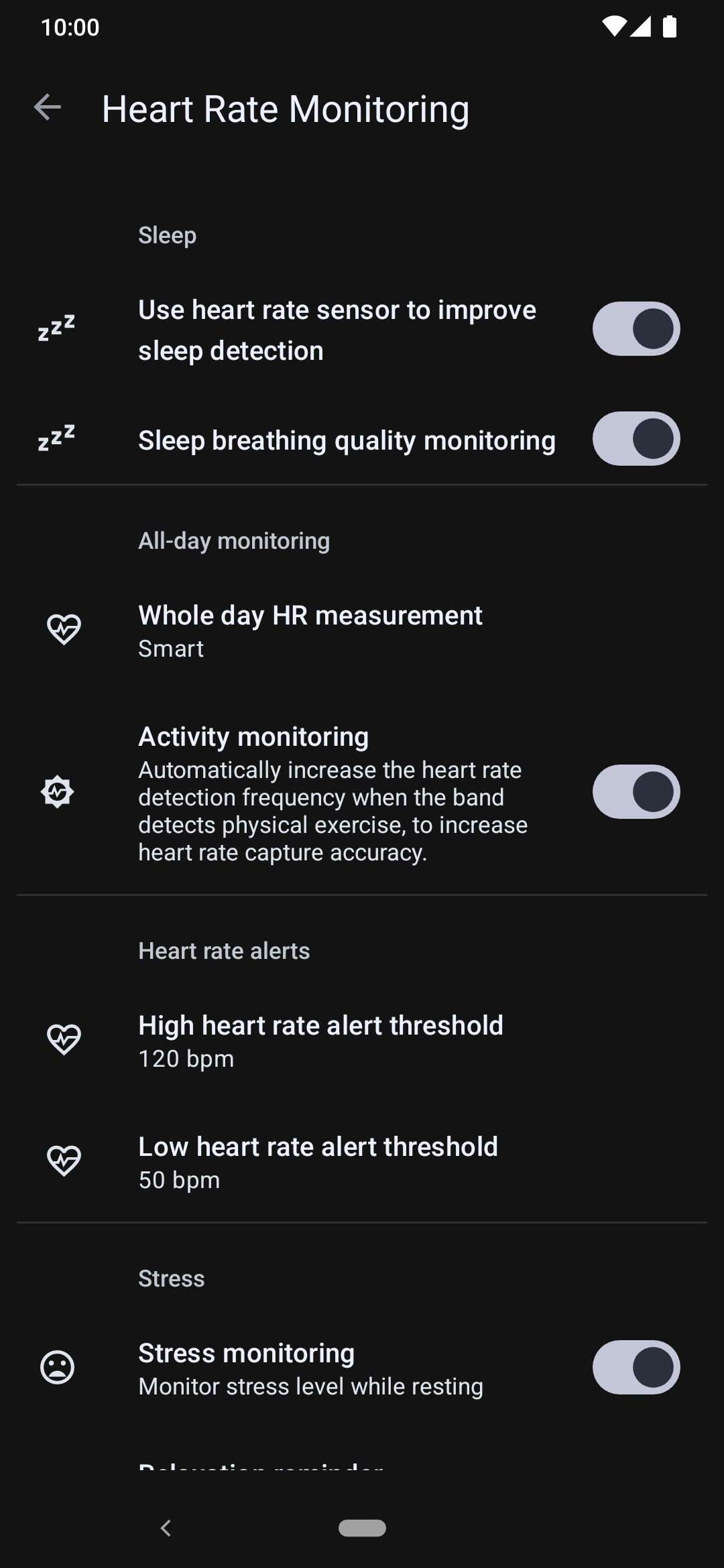
If supported by gadget, you might want to enable whole day heart rate measurement under "Device specific settings → Heart Rate Monitoring".
So the band will take measurements at least once in this interval. If an activity is detected, more frequent measurements are taken, capturing the entire activity in detail. So it is often sufficient to use the "Once an hour" interval and the gadget will capture all your active time, plus one sample per hour during idle time.
GPS
Gadgets can be separated to three groups when it comes to the GPS, which explained further below:
Gadgets having a GPS receiver built-in
Gadgets not having a GPS receiver built-in but can receive GPS from phone instead
Gadgets not having a GPS receiver built-in and can't receive GPS from phone either
Built-in GPS receiver
When using a gadget that has a built-in GPS receiver, often you don't need to configure anything.
However, these gadgets may use a system called Assisted GPS to improve GPS reliability by providing the orbital information of satellites beforehand. If such a gadget has recent aGPS data, the GPS receiver performs much better.
For Huami devices, see Huami GPS to learn how to obtain and sync aGPS data for these.
Requesting GPS from phone
When using a gadget that doesn't have a built-in GPS receiver, but supports receiving location from your phone, Gadgetbridge sends your phone's location to the gadget automatically when requested by your gadget.
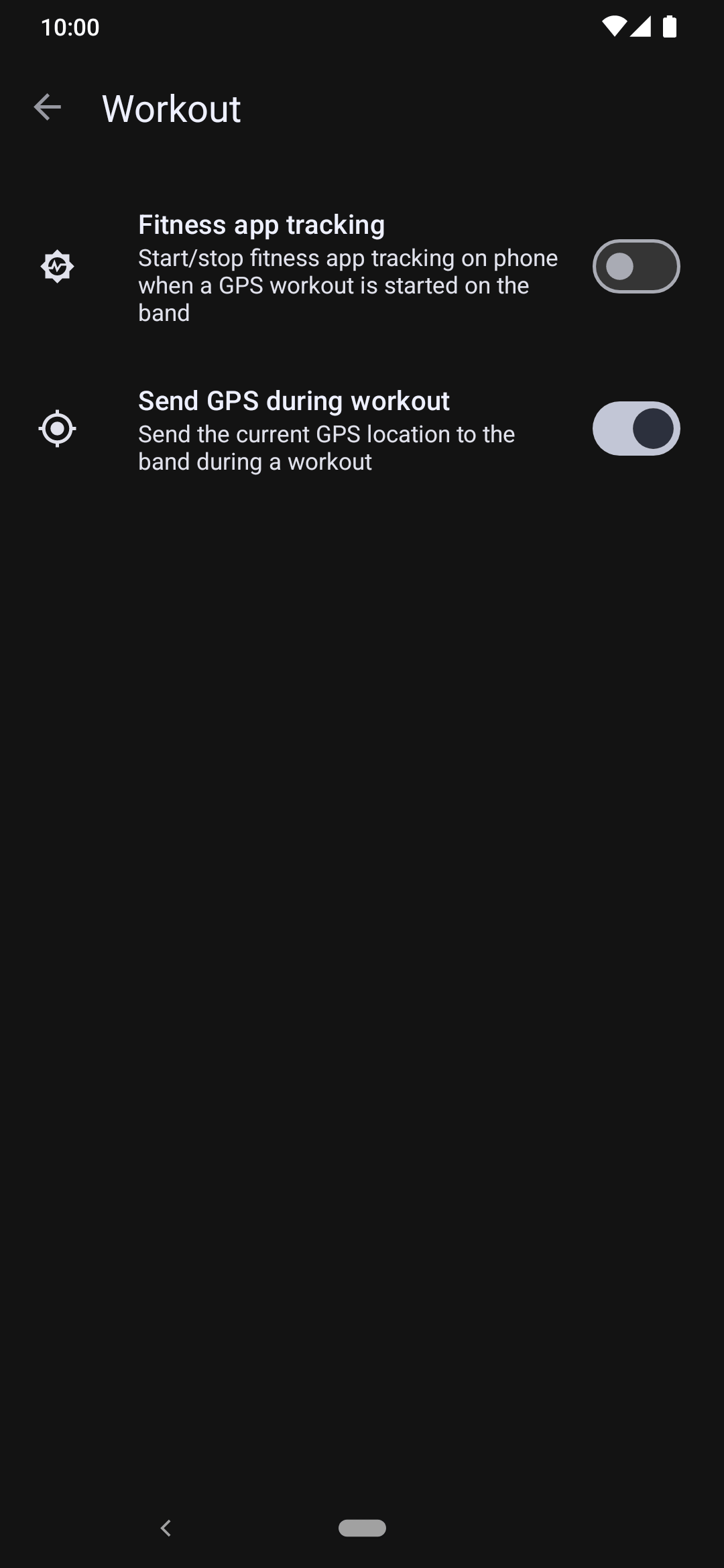
For this, enable "Workout → Send GPS during workout" under "Device specific settings".
Now, when you start the workout on the gadget, it will receive GPS from your phone. Make sure to enable the GPS location feature on your phone before starting a workout.
Without GPS
When using a gadget that doesn't have a built-in GPS receiver and doesn't have the capability to request it from your phone, the recorded sports activities will be saved without location data. However, you can still use 3rd party applications to attach location data to your sport activities at any time.
Some gadgets (like Fossil) send a signal to Gadgetbridge that a GPS workout is started or stopped. Gadgetbridge then uses the OpenTracks API to send a signal to OpenTracks (if installed) to start or stop GPS tracking. While this doesn't fully integrate with Gadgetbridge sports activities, it still provides watch-controlled GPS tracking and on-watch statistics.
GPX tracks
Sport activities that contain GPS data can be saved as "GPX" files. GPX is a common GPS data format that can be used to define waypoints, tracks, locations, routes and more. As this data format is not specific to Gadgetbridge, a GPX file can be created, viewed and manipulated in other applications.
File location
Synced GPX tracks from the gadget will be saved to Gadgetbridge's own data folder. See the relevant link to find the GPX file on your phone, or later view on the desktop with GPXSee or similar software.
Viewing tracks
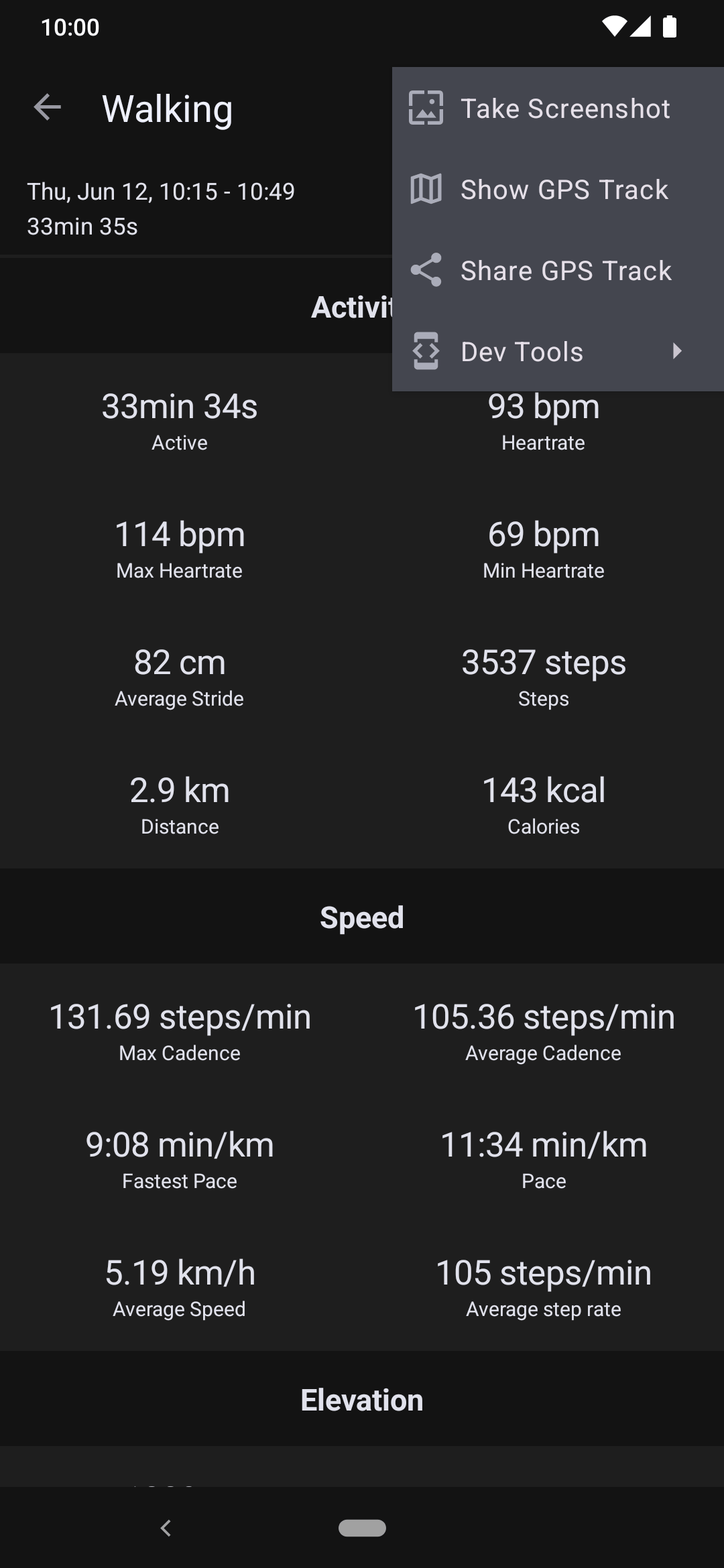
To open the recorded GPX track, tap on a sport activity, then the Share icon on the top right corner, and choose "Show GPS Track" option from the menu. Now choose an installed application on your phone that is capable of viewing GPX tracks.
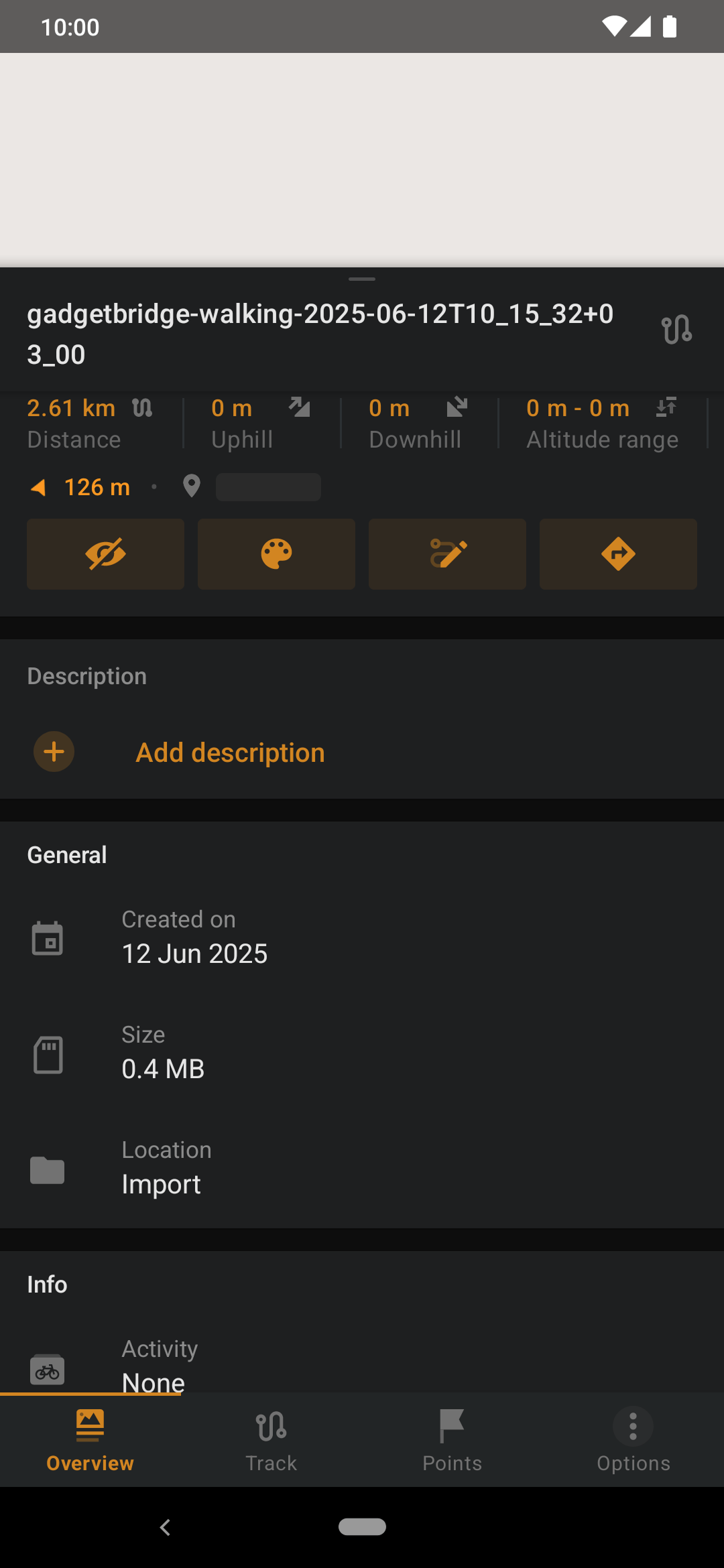
For example, OsmAnd is one of the map & navigation applications that support viewing GPX tracks with displaying every recorded detail.
There are many more FLOSS Android applications to view the recorded GPX file. Some examples are:
- OpenTracks
- OSM Dashboard for OpenTracks
- OSM Dashboard Offline for OpenTracks
- FitoTrack - not via sharing icon, but by using import function in FitoTrack.
- Another Android Tracker - seems like more precise representation of time and distance, calculates calories.
- Milkha
Linking with activities
If you are using a gadget that doesn't have a built-in GPS chip and doesn't have the capability receiving GPS data from your phone, the sport activities will be recorded without GPS/GPX data by default. However, if you have a GPX file for an activity, you can link it to a sport activity at any time.
Also, some gadgets might not record GPS for some activities that started on the gadget by design such as indoor cycling, rowing machine, pool swimming, so having GPS linked for these activities can make sense.
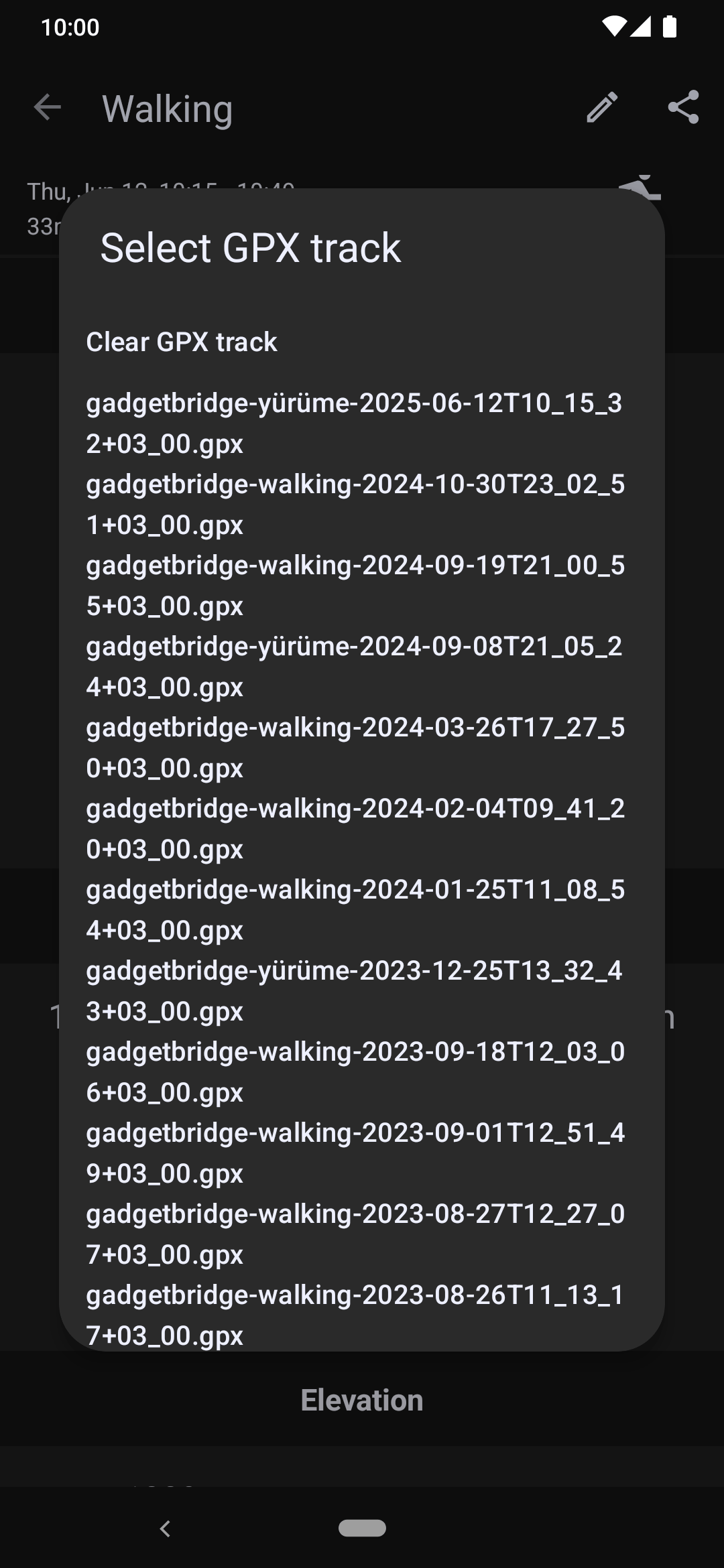
To link a GPX track with a sport activity, click Edit on top-right, then Select GPX track.
This will list all GPX tracks that are saved in Gadgetbridge. If you want to import a GPX file that is recorded from an external application, see Importing to Gadgetbridge.
When the gadget recorded no position for the activity, the linked GPX track is used for "Share GPS Track", "Share FIT File" and uploads to online fitness trackers. pull request #6953
Maps
Since Gadgetbridge is an offline-first app, activities with GPX tracks will only be shown as a trail without rendering the map off from the internet, but still, you can bring an offline map file that is previously downloaded to let Gadgetbridge to display the trail on the actual map.
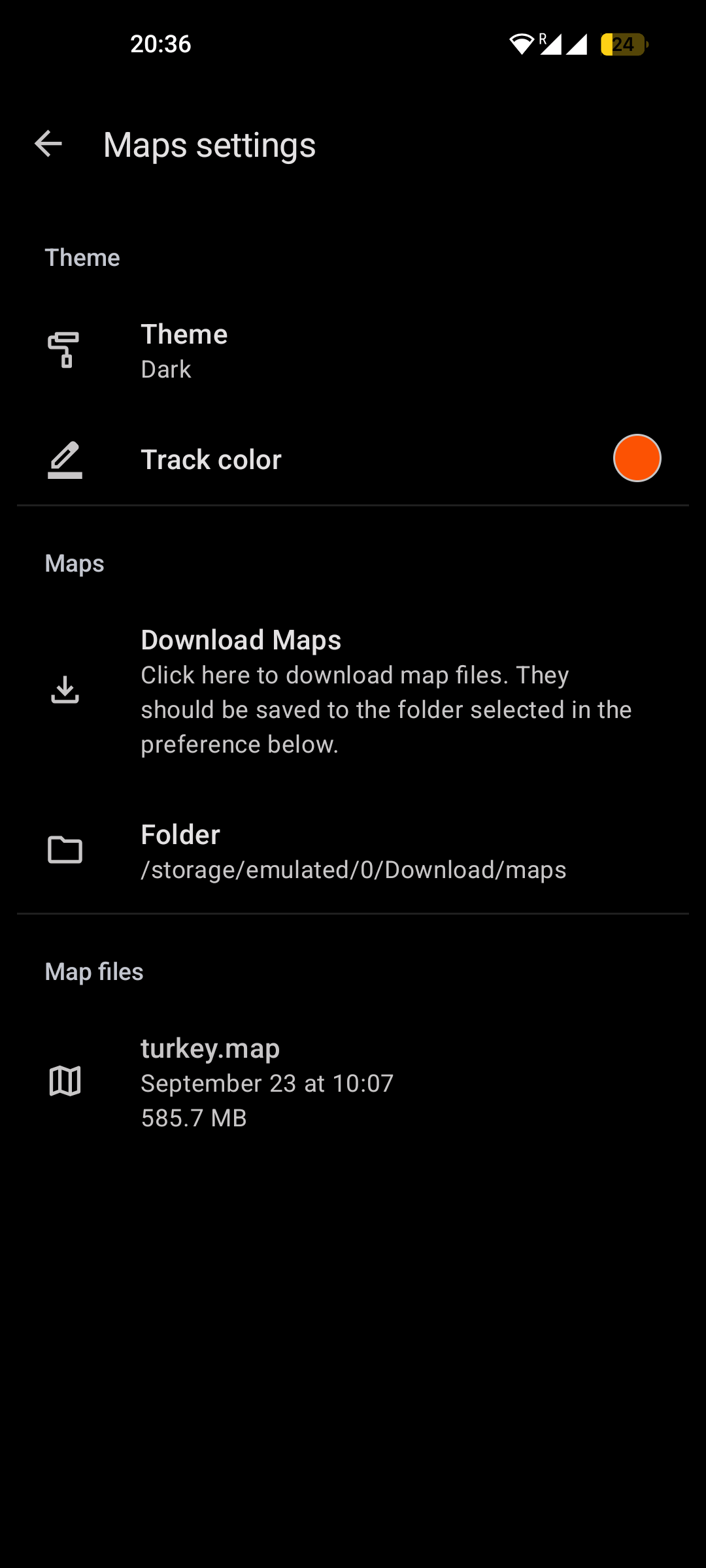
To do that, from the home screen, open the sidebar and go to Settings → Maps.
If you don't have a map file yet, you can grab one by clicking on "Download maps" that takes you to a website where you can find map files. You can choose to download specific regions for more detailed tiles or the whole world for a much smaller file with less detail.
After downloading a map file, head back to Gadgetbridge and set the folder where your map files are located. If Android doesn't let you pick a generic location, move the downloaded map to another folder (or create a new one) and try again.
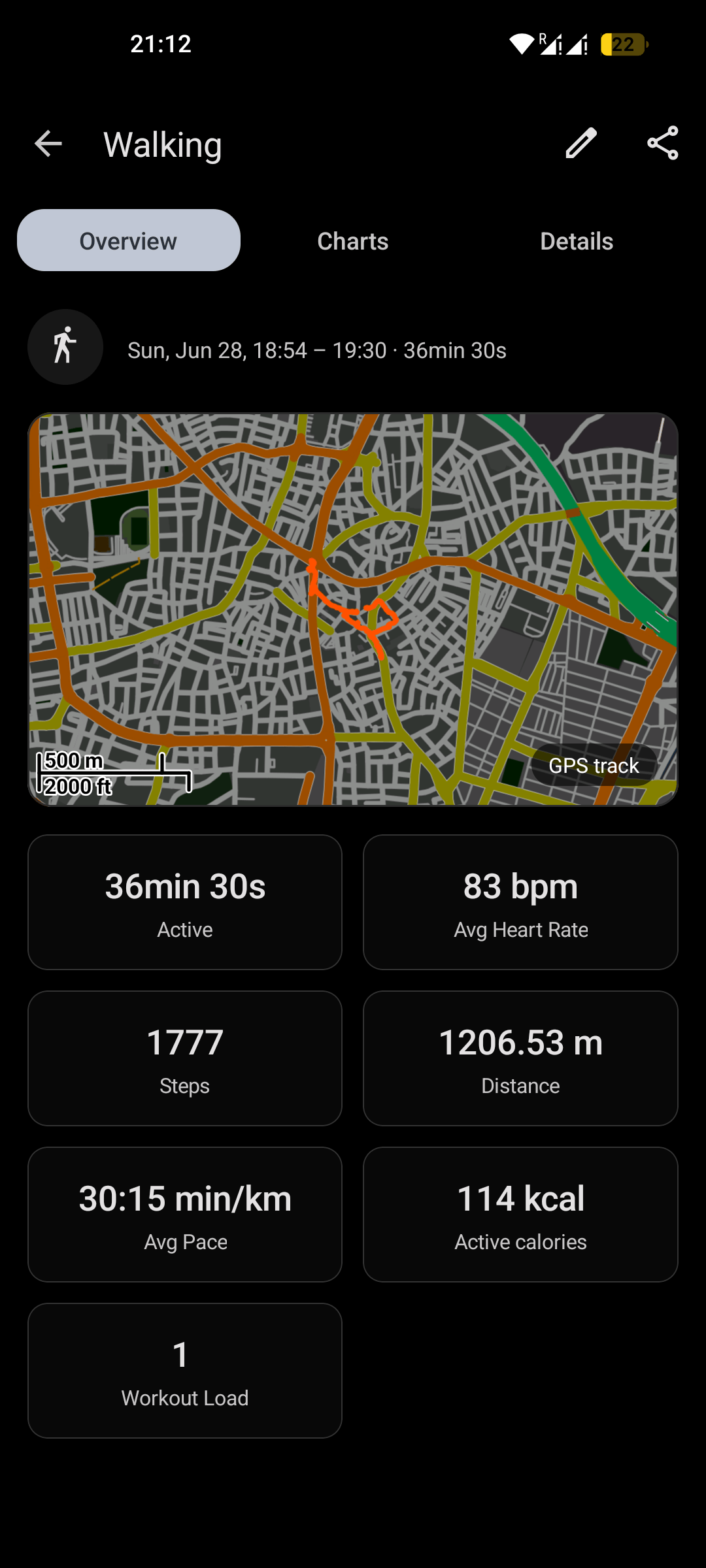
Then, view any sport activity containing a GPX track and this time Gadgetbridge will render the map itself along with the trail. You can also click on the map to expand it.
If map file couldn't be found on the folder that is set in Gadgetbridge (deleted or moved to another folder), Gadgetbridge will stop rendering the map, since Gadgetbridge doesn't keep a copy of the map but only the GPX track.
You can always add more map files to the map folder or delete older ones to save space when needed.
FIT files
A .fit file contains relevant information from a past activity, and can be sourced from any synced sport activity, including ones that doesn't contain a GPX track.
It is device-agnostic and Gadgetbridge can create it on its own, meaning it works for any device even when they don't provide a FIT file during sync themselves.
To access a FIT file of an sport activity, select Share menu → Share FIT File. To export several activities at once, see Exporting workouts. You can also choose to export FIT files automatically in each time an activity was synced to Gadgetbridge.
Developer tools
For troubleshooting and for improving the support of a gadget, the Share menu of an activity has a Dev Tools submenu.:
- Inspect file: shows the content of the raw FIT file received from the gadget.
- Share Raw Summary, Share Raw Details and Share Raw GPS: share the files as they were received from the gadget.
- Share JSON Details: shares the parsed activity data as JSON.
Privacy
These files can contain personal data, such as your location, heart rate and the time of your activity. Only share them with people you trust.
Limitations
Please be aware that not every detail of a given workout is currently being displayed in Gadgetbridge but the full workout is retrieved and stored. So as interpreting improves, the displayed data improves too. Interpreting the data is a challenge, so if you spot an issue, please try to figure out what the correct representation might be and report it on our issue tracker.