Huawei/Honor pairing
Attention
Huawei and Honor watches can be paired without the need for the official app.
You only need to do this if you want to connect to both the official app and Gadgetbridge without resetting the watch/band each time.
Pair without factory reset
As of pull request #3721 it is possible to pair a device with Gadgetbridge without factory reset after using the official app. For this, you need to get the Huawei account ID, a 17-digit number.
Reconnecting to Gadgetbridge
Note that reconnecting to Gadgetbridge requires you to pair the device again - you can do this by disconnecting the device first, and then using the Add on the bottom-right corner of the home screen to pair the device again.
You do not delete the device before you do this! Deleting the device will also delete the associated data!
Authentication key negotiation failed
If you connected to the official app and are now seeing a "Authentication key negotiation failed" error, you need to follow one of the following options:
- Factory reset the watch before connecting back to Gadgetbridge
- Get the account ID, so that Gadgetbridge is able to connect again, by following the steps below
Getting the account ID
Through the website
On Firefox:
- Go to https://cloud.huawei.com/ and log in
- Press F12
- Go to the
Storagetab in the newly opened view - If not selected, select
https://cloud.huawei.com/under theCookiesheader on the left (this should be selected by default) - In the
Namecolumn, look foruserId. In theValuecolumn, you should see a 17 digit number. - Copy that key into your clipboard and jump to the next section to continue.
On Chrome/a Chromium based browser:
- Go to https://cloud.huawei.com/ and log in
- Press F12
- Go to the
Applicationtab in the newly opened view - To the left under
Storage, click the little downward arrow next toCookiesand open the cookie namedhttps://cloud.huawei.com/ - In the
Namecolumn, look foruserId. In theValuecolumn, you should see a 17 digit number. - Copy that key into your clipboard and jump to the next section to continue.
On rooted phones
Run following command in a root shell. (e.g. Termux for on-device, or ADB for on-computer)
This should output something similar to this:
The account ID in this example would be 20007000023812345.
Now, keep that key in your clipboard and jump to the next section to continue.
Without root
It has also been reported that the key is printed to logcat by the official app.
Use the adb logcat command and search for huid=, you should be able to find the value for the key.
Entering key
Before entering the key and attempting to connect, you should remove all permissions from the vendor app or uninstall it, since it can conflict with Gadgetbridge. Do not unpair the watch from the vendor app, as that will invalidate the auth key.
If you are currently on the "Device discovery" page, long press on the device name and click on "Auth key" to enter the key.
If you added the gadget already, touch the icon under your gadget name (while on the home screen) to go to the "Device specific settings", open the " Authentication" menu, and click on "Auth key" to enter the key.
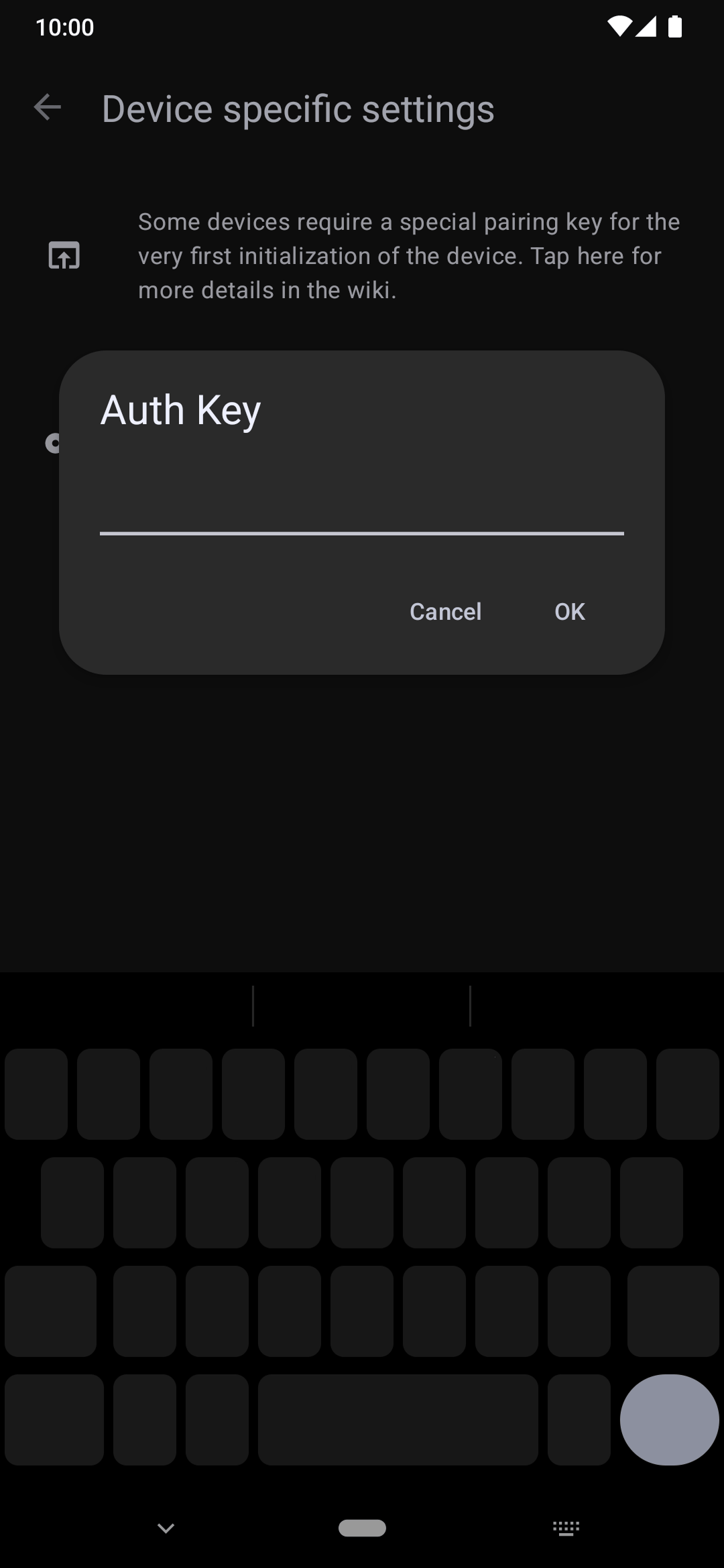
After entering your account ID, you should be able to connect to both the official app and Gadgetbridge without resetting the band every time.
Note that reconnecting to Gadgetbridge requires you to pair the device again - you can do this by disconnecting the device first, and then using the Add on the bottom-right corner of the home screen to pair the device again. You do not delete the device before you do this! Deleting the device will also delete the associated data!
Now you're ready to start using Gadgetbrigde!